TNR Local Pickup
$50.00 / year
Local Pickup Features
Flexible shipping and pickup control for your WooCommerce store
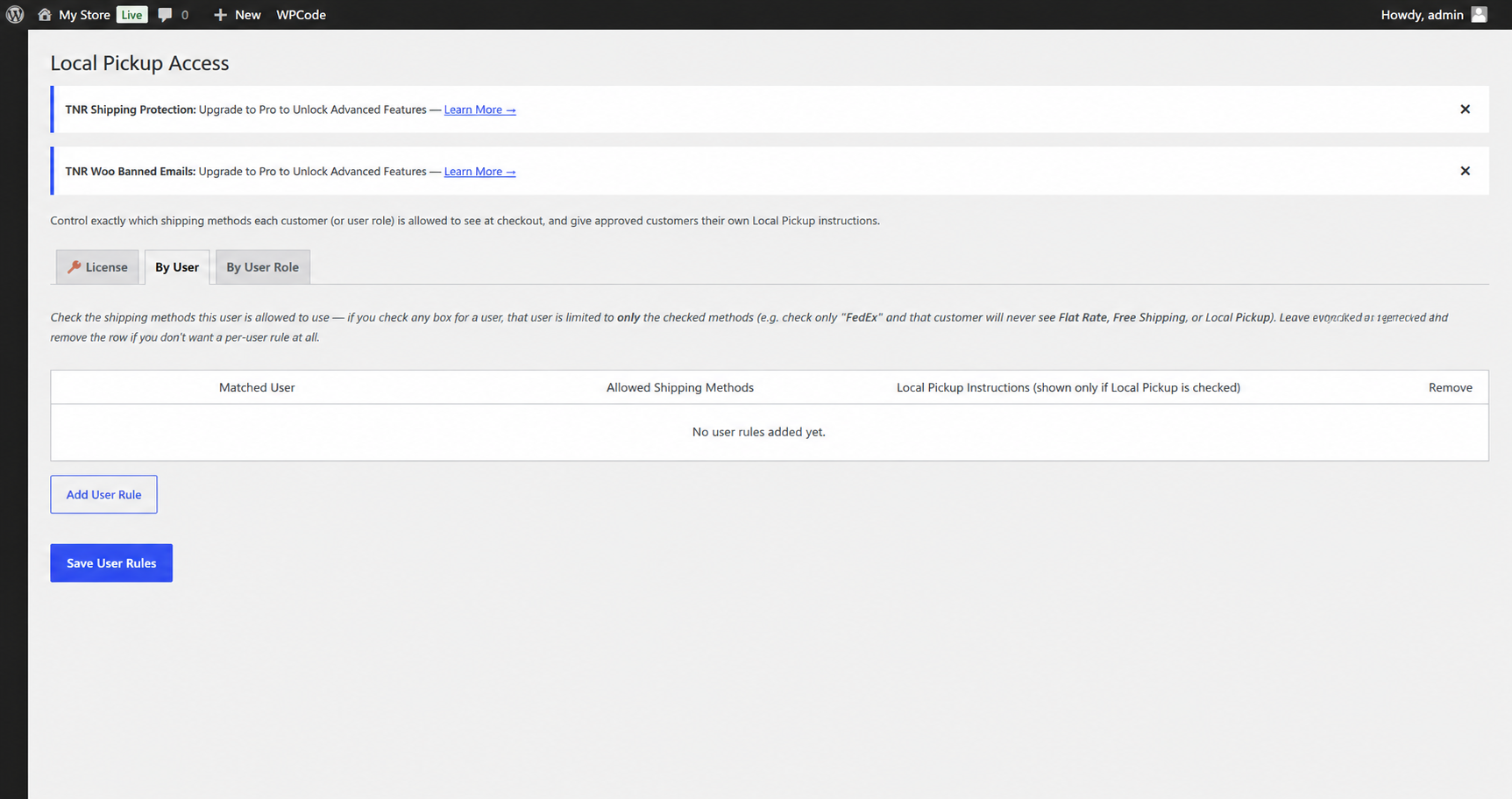
TNR Shipping Access Control lets you decide exactly which shipping methods each customer can see at checkout, right down to the individual account. Hide Local Pickup from customers who shouldn’t have it, restrict flat-rate or freight options to specific roles, and give VIP or local customers their own custom Local Pickup instructions — all from one clean admin screen.
How It Works
01 — Add the Customer
Enter the customer’s email address in the By User section. The plugin can match the email to their existing WordPress user account.
02 — Choose Shipping Methods
Select the shipping methods that customer is allowed to use. Unchecked methods can be restricted for that customer.
03 — Add Pickup Instructions
If Local Pickup is enabled, add custom instructions specifically for that customer — such as pickup location, hours, or additional notes.
04 — Save Your Rules
Click Save User Rules and your shipping permissions are ready.
05 — Checkout Updates Automatically
When the customer checks out, WooCommerce applies the rules you’ve configured and displays the appropriate shipping options.
By User Role
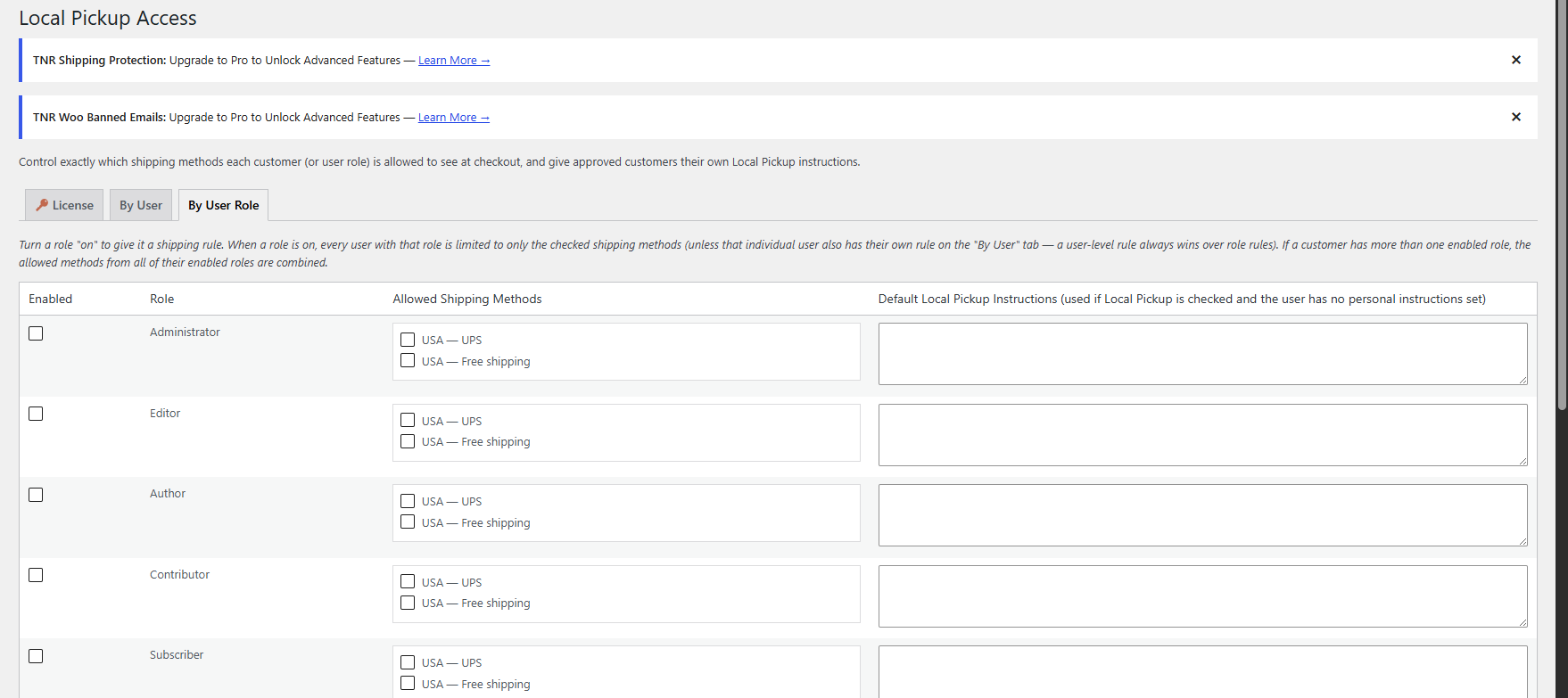
The By User Role section lets you manage shipping permissions for multiple customers at once based on their WordPress user role. Instead of creating individual rules for every customer, you can enable a role, choose its available shipping methods, and set default Local Pickup instructions from one central screen.
How It Works
01 — Enable the User Role
Select the Enabled checkbox for the role you want to configure. Once enabled, users assigned to that role will follow the shipping rules you set.
02 — Choose Allowed Shipping Methods
Select the shipping methods that users with the selected role are allowed to see at checkout. For example, you can allow USA — UPS and USA — Free Shipping while restricting other available methods.
03 — Add Default Pickup Instructions
Enter default Local Pickup Instructions for the selected role. These instructions can include the pickup location, business hours, contact details, or any other information customers need.
04 — Configure Multiple Roles
You can create different shipping rules for different WordPress roles, such as Administrator, Editor, Author, Contributor, and Subscriber. Each role can have its own shipping methods and pickup instructions.
05 — Save Your Role Rules
After configuring the roles and shipping methods, save your settings so the rules can be applied to customers at checkout.
06 — Personal Rules Take Priority
If a customer has their own shipping rule configured in the By User section, that individual rule takes priority over the role-based rule. This lets you create specific exceptions for individual customers when needed.